

Registering for Classes
Once you know which courses you would like to take you can use the following instructions to get registered.
Spring 2026 and Summer 2026 registration
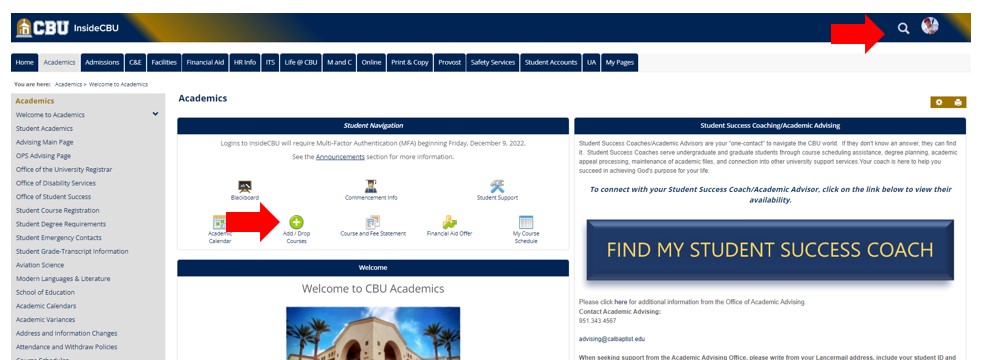
1. Log into InsideCBU and click on the “Academics” tab, followed by the green Add/Drop Course icon.
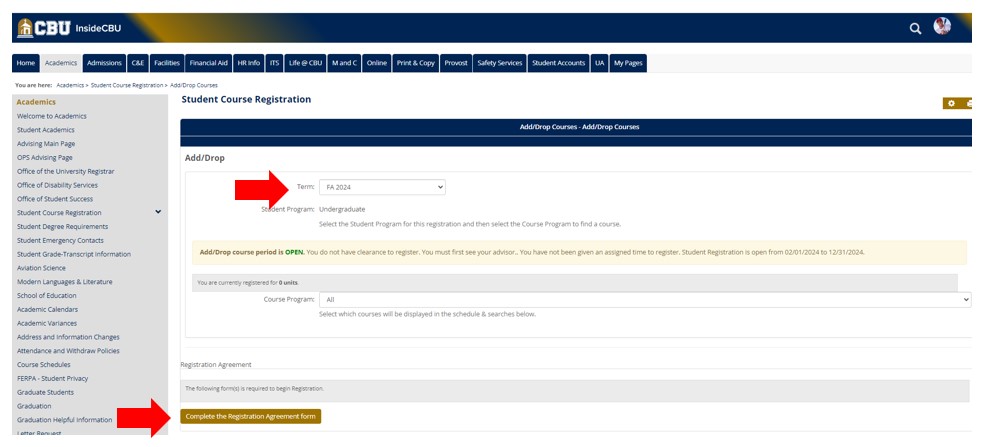
2. Next, pull-down to the semester in which you would like to add classes. Be patient as the screen reloads. Once the screen has reloaded, click the brown Complete Registration Agreement Form and acknowledge.
The State of California required that students acknowledge they typically need 15-16 units per semester to graduate on time. This is obviously not the case with students in certain graduate or doctoral programs.
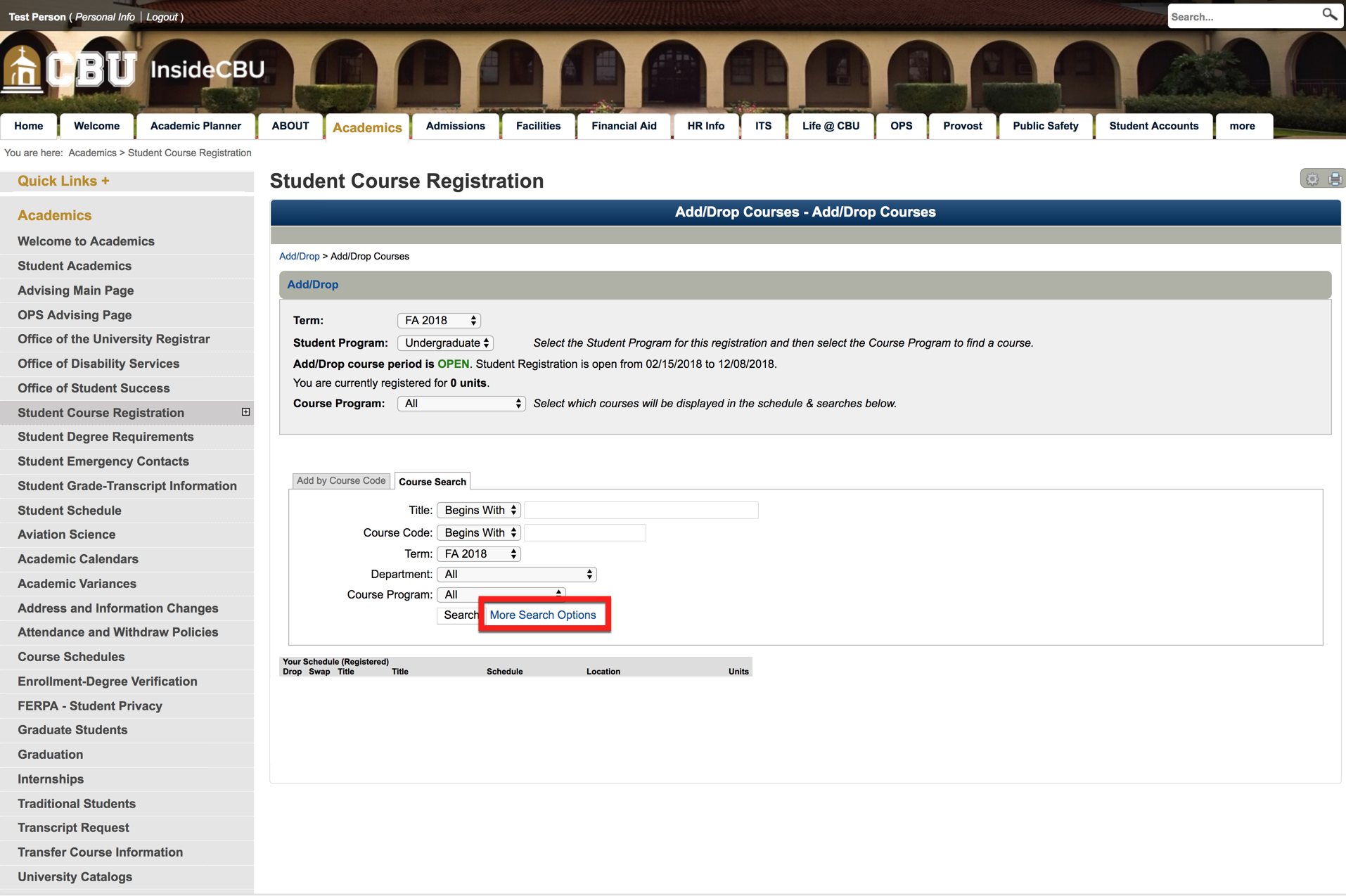
3. Scroll down and click on the “More Search Options” link in the Course Search box.
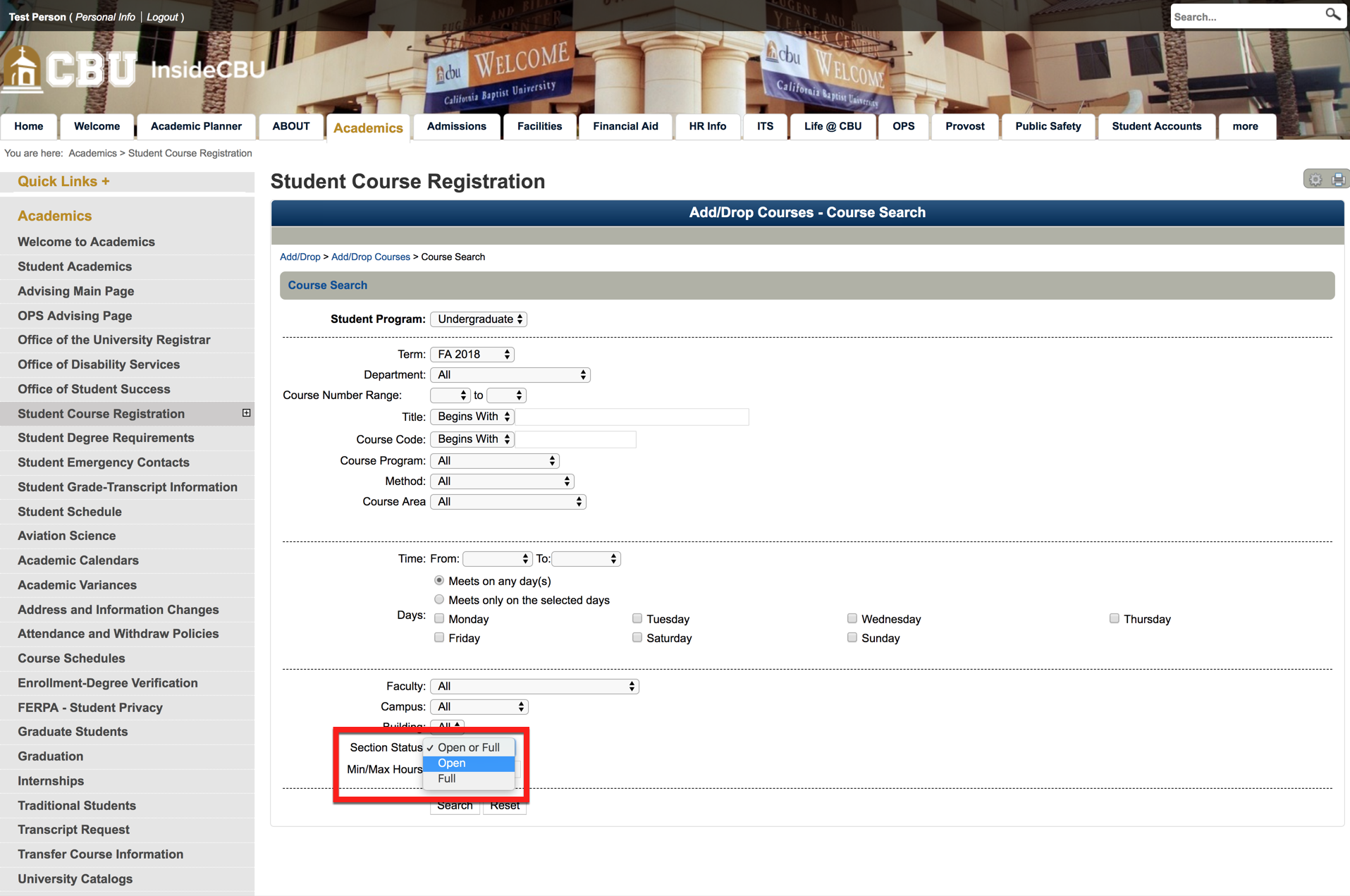
4. Change the Section Status to OPEN. This will prevent closed courses from appearing in your search results. The University does not maintain waitlists on closed sections.
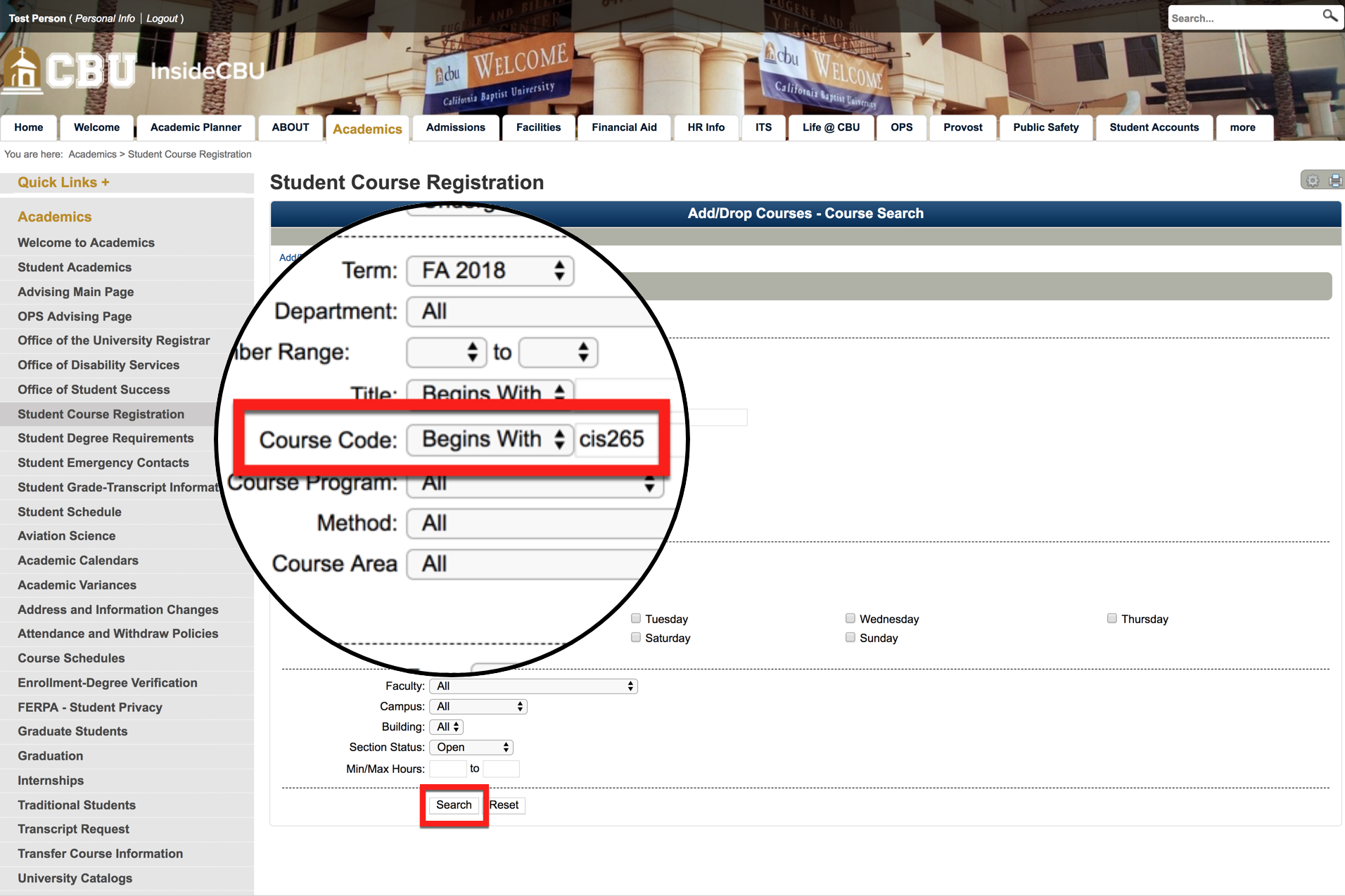
5. In the Course Code field type in the course code of the class you would like to add. The course code contains only letters and numbers, no spaces or hyphens.
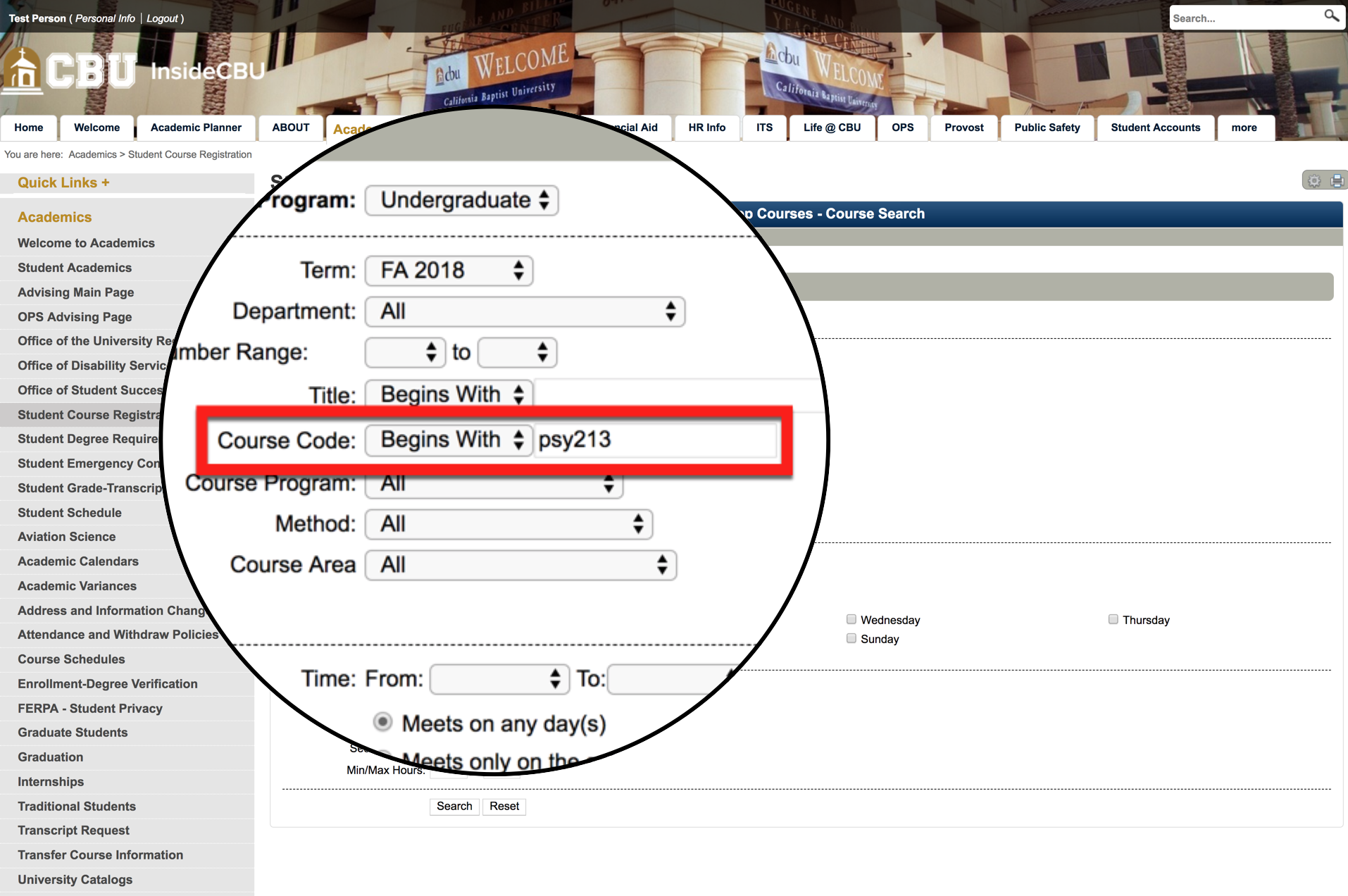
6. You can further refine your search using the other filters on this page, however these are not required. Click SEARCH.
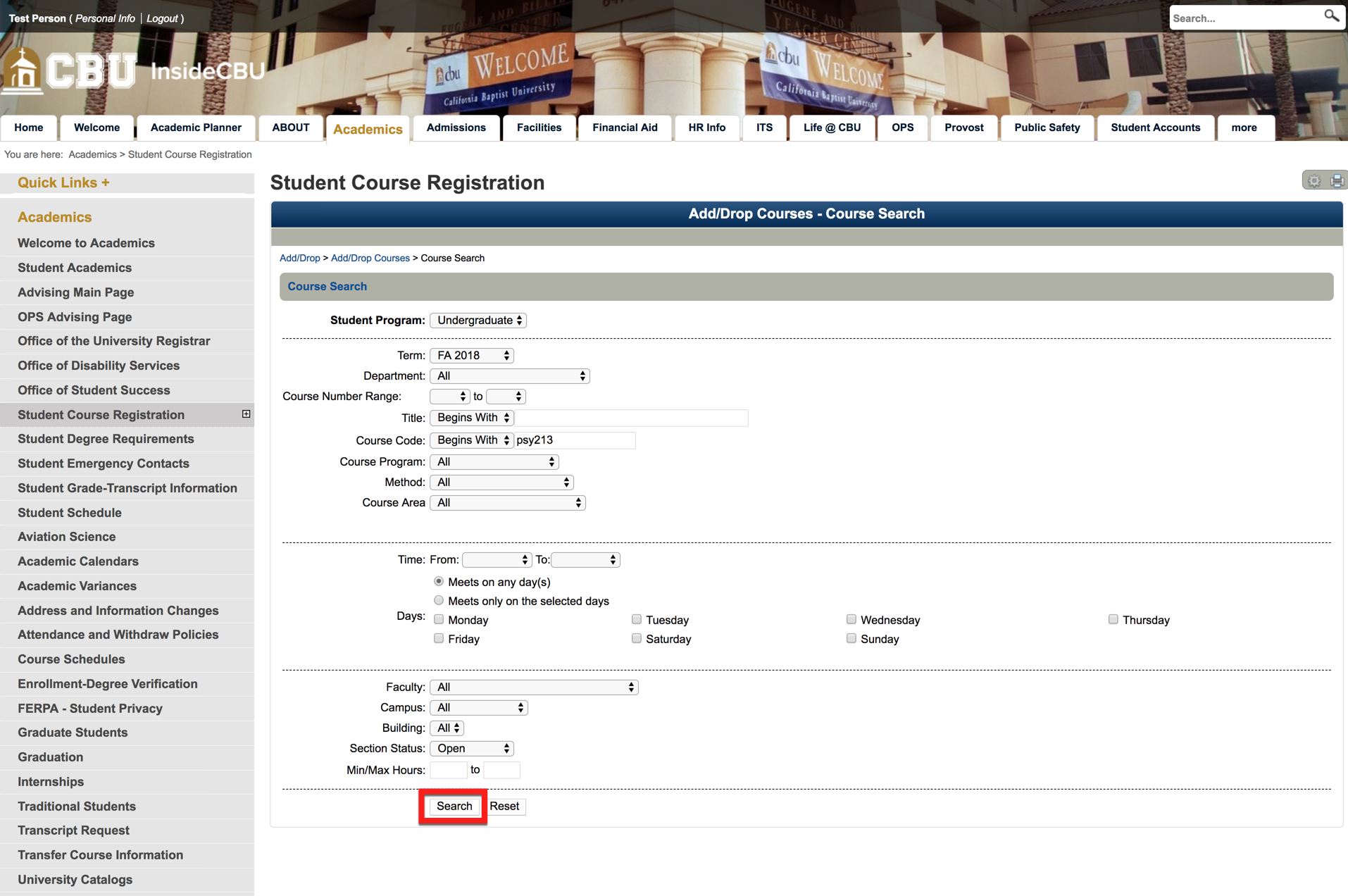
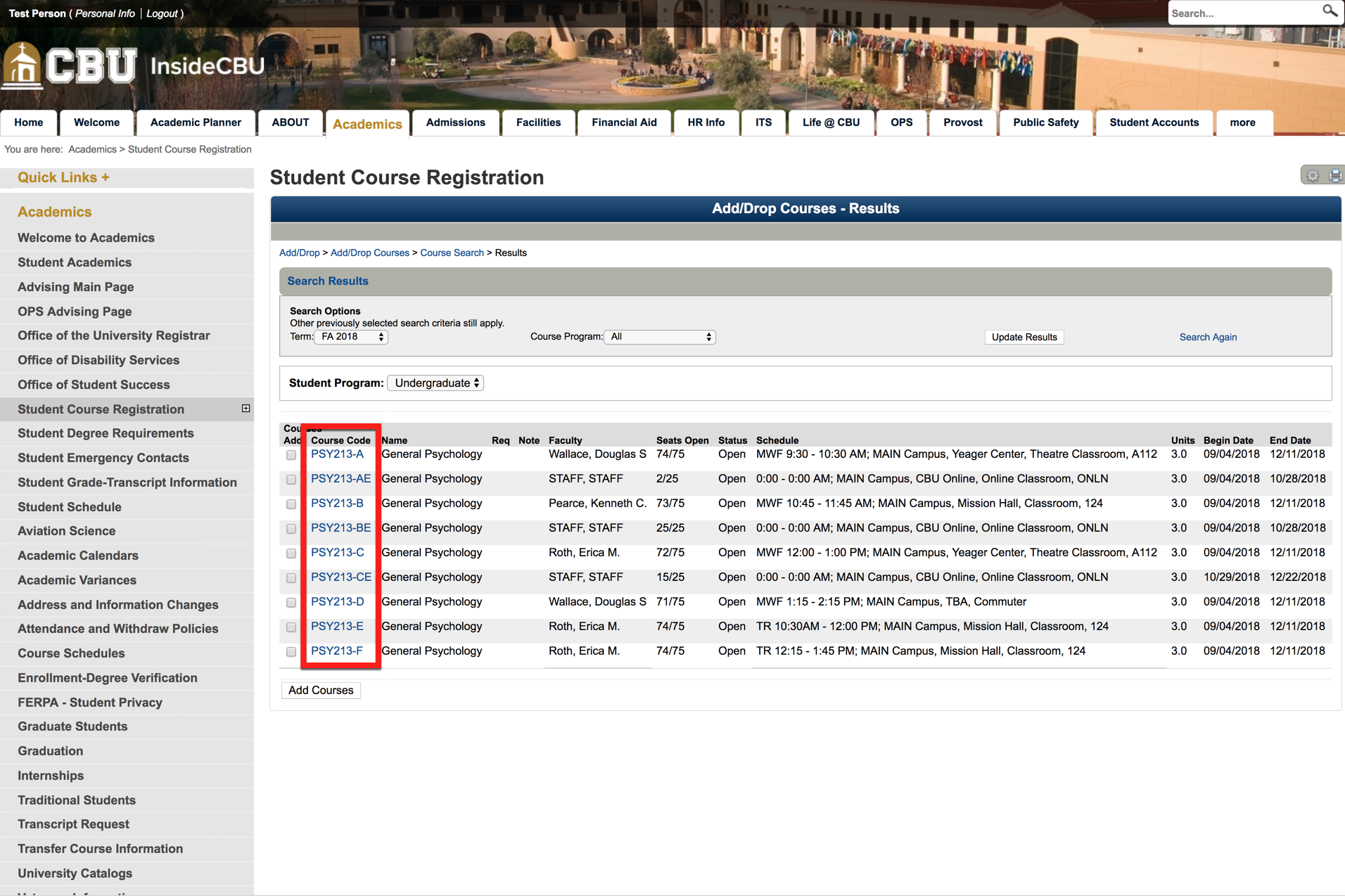
7. All courses and sections that match your search criteria will appear on the search results page. Before moving on, let's look at a few details in the search results.
First, the course code column contains the course code and section letter for the course. Different section letters simply indicate a unique time, meeting days, location, and professor. For example, while section A and section B of PSY213 are the same course, they are taught by different professors, in different times and places. This allows students to choose whatever section best fits their schedule.
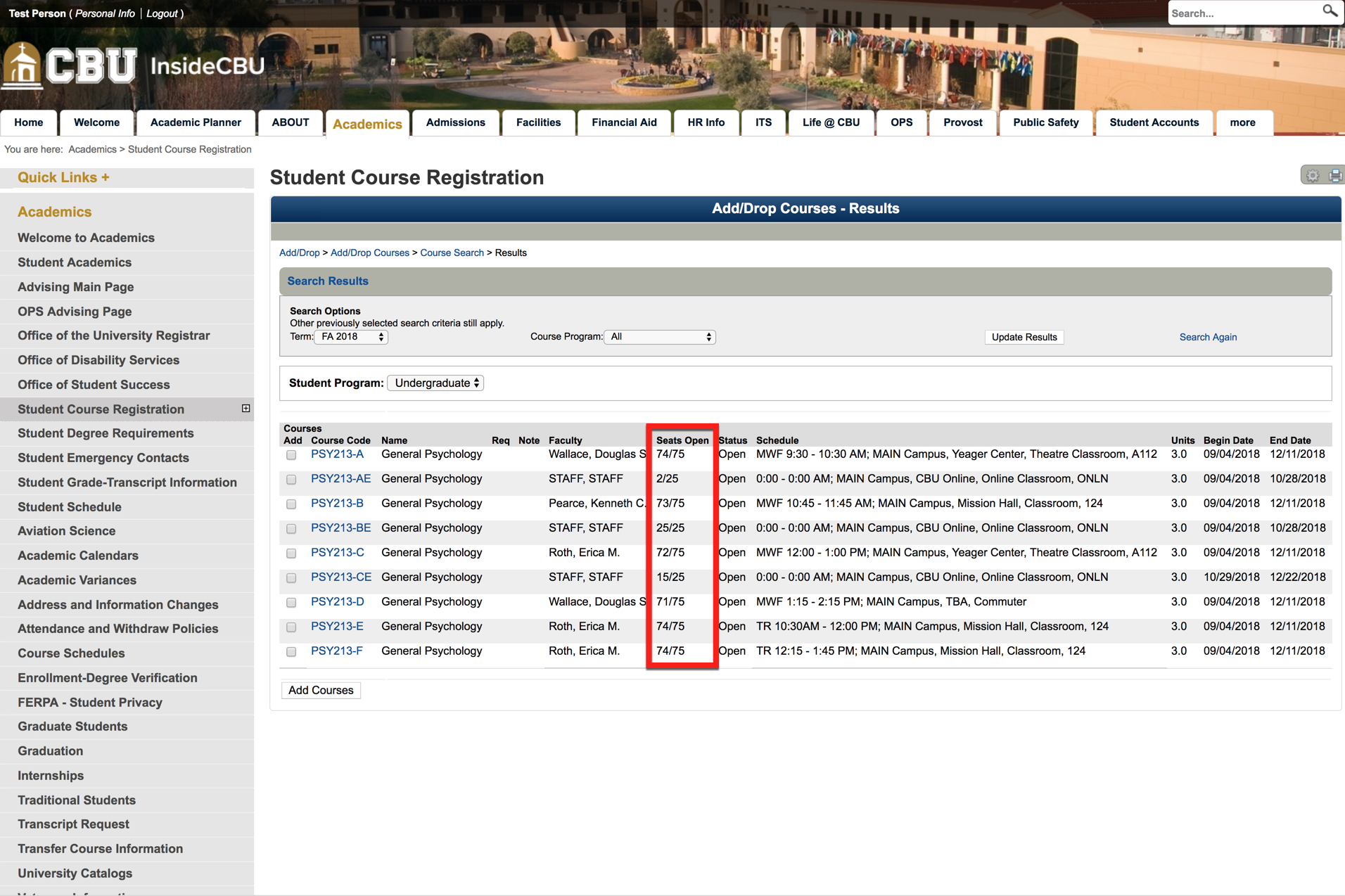
The seats open column displays a ratio of seats open to total seats in a classroom. This can appear confusing to some. If a ratio is 15/25 that doesn't mean that there are 15 students enrolled in that course, it means that there are 15 available seats in that course.
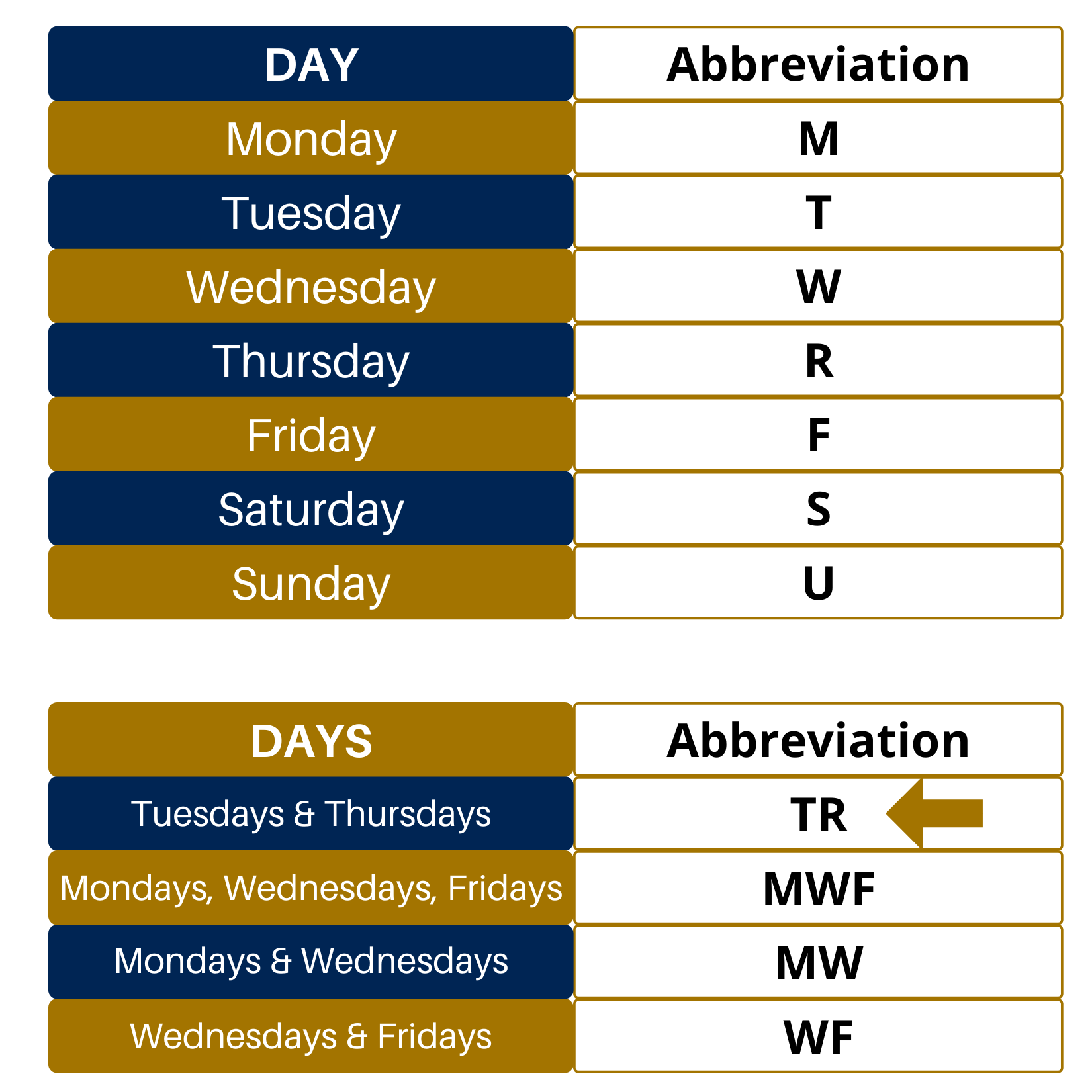
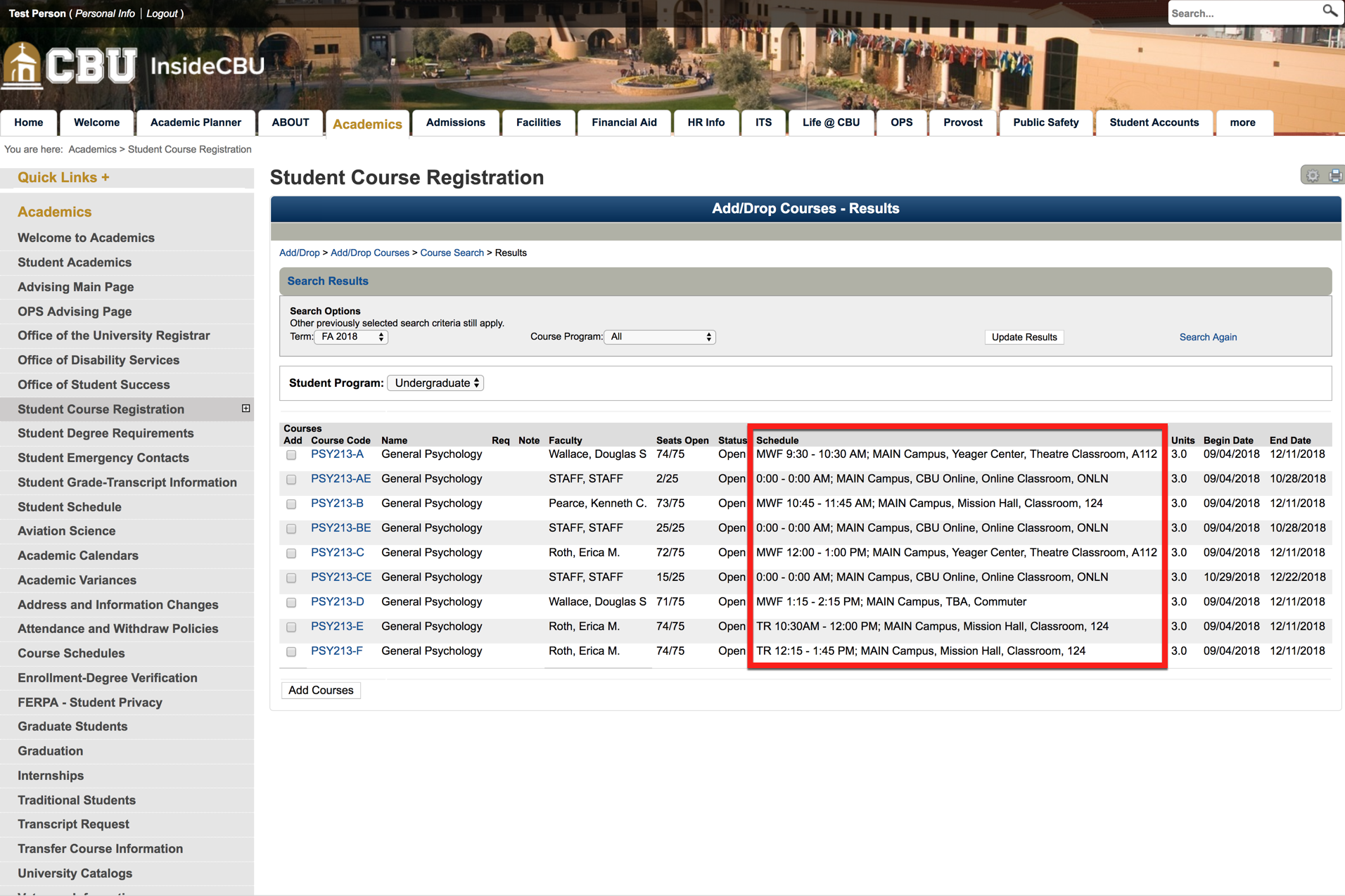
The schedule column displays the days that class will meet (TR means Tuesdays and Thursdays; R meansThursday), the time of day for each meeting, and location.
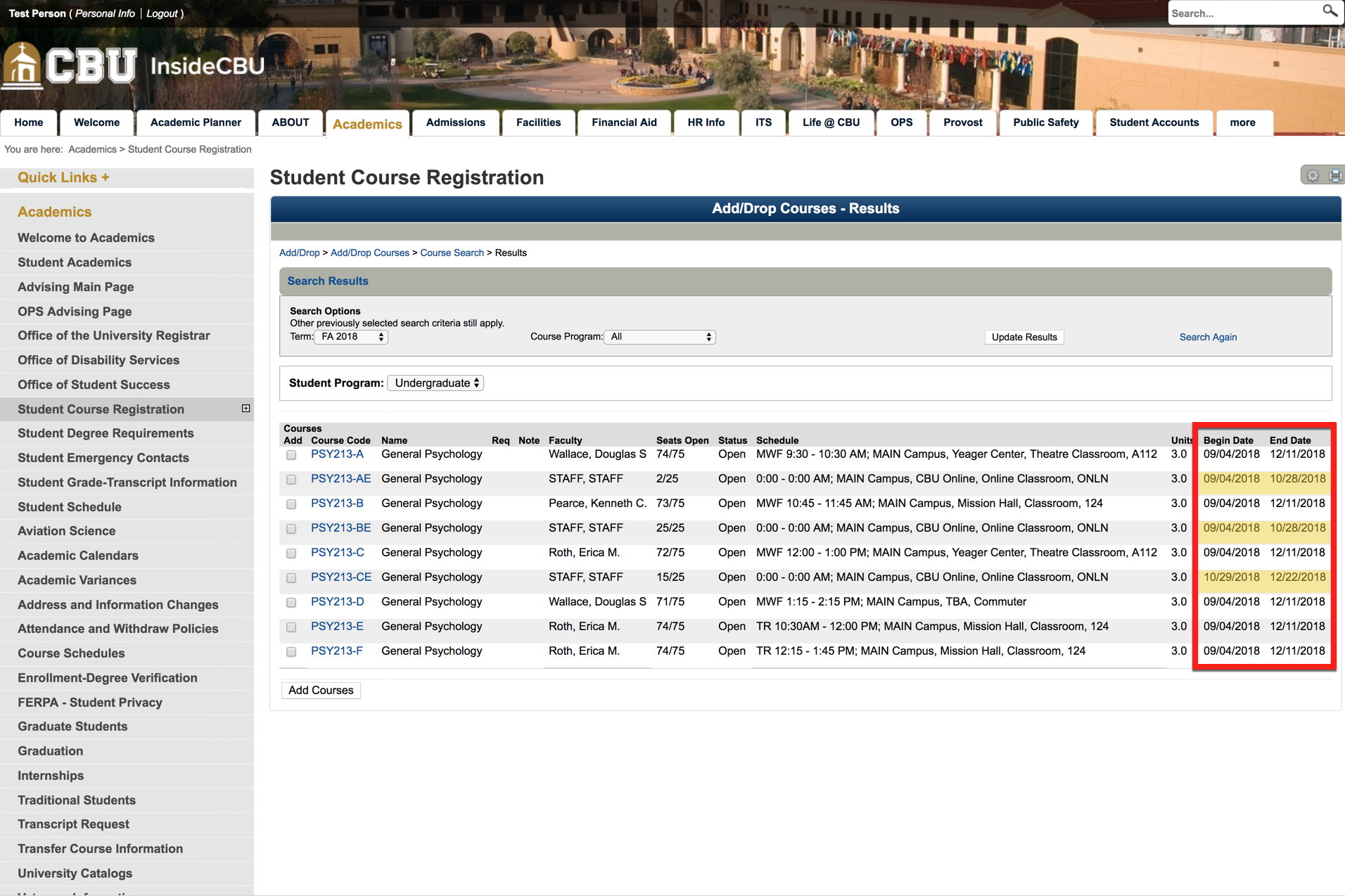
Lastly, the Begin and End Date Columns indicate the first and the last day of that course. Accelerated Online courses are only 8 weeks long (as opposed to 16 weeks) and therefore have different begin and end dates (highlighted below in yellow). We do not recommend these sections for first-time freshmen.
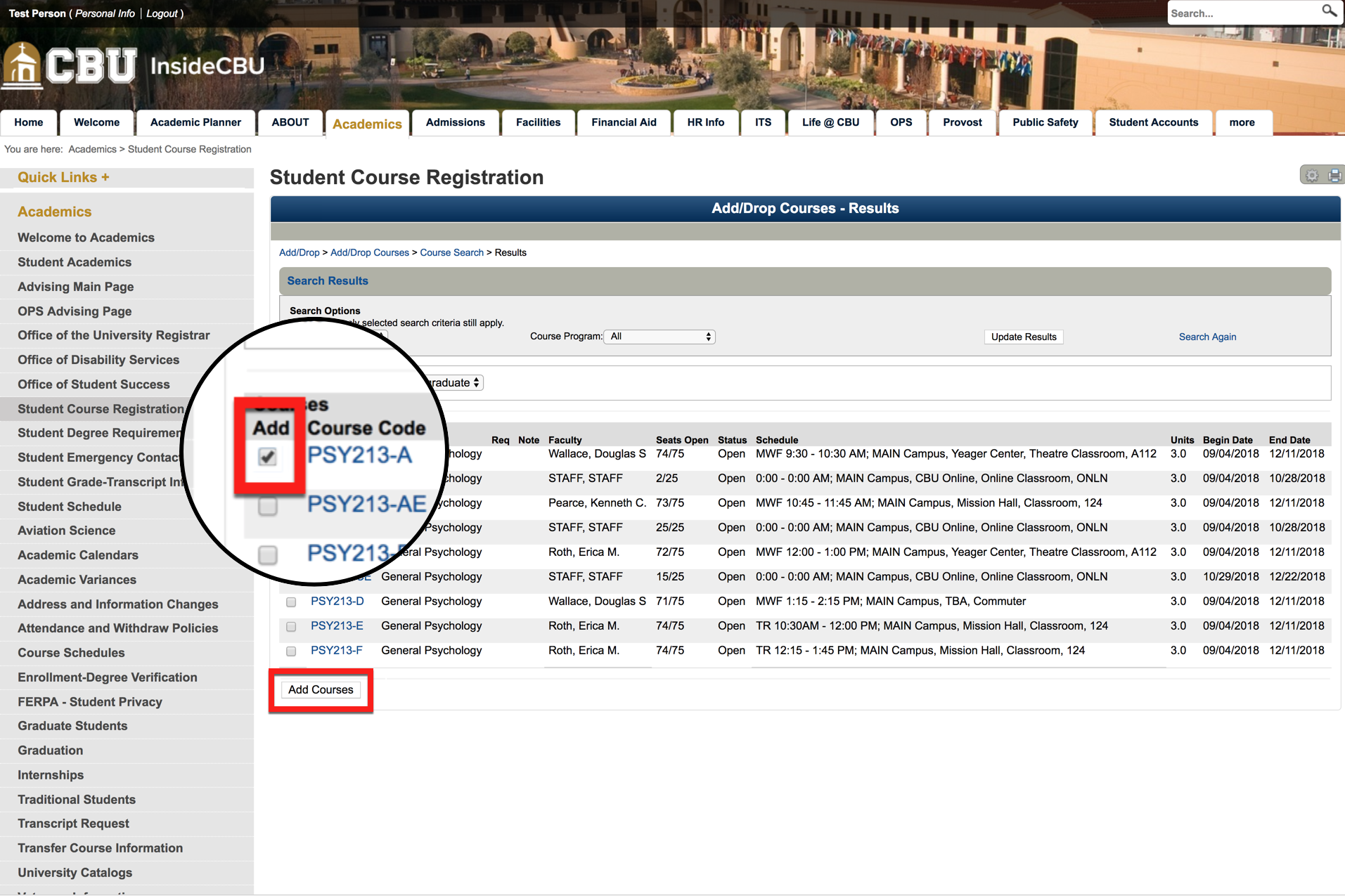
8. From the list of results, check the ADD box to the left of the Course Code and Click on the “Add Courses” button at the bottom of the page.
9. After each add, stop and notice the comment in the box above the schedule. This box will notify you of important information such as:
- Schedule Conflicts
- A prerequisite that has not been met
- If you are trying to add a course that is full, or...
- If you are repeating a course previously taken (You are responsible for knowing if the course is repeatable. Please check the course description).
If the course is added successfully it will appear in the bottom portion of the screen
in your semester schedule.
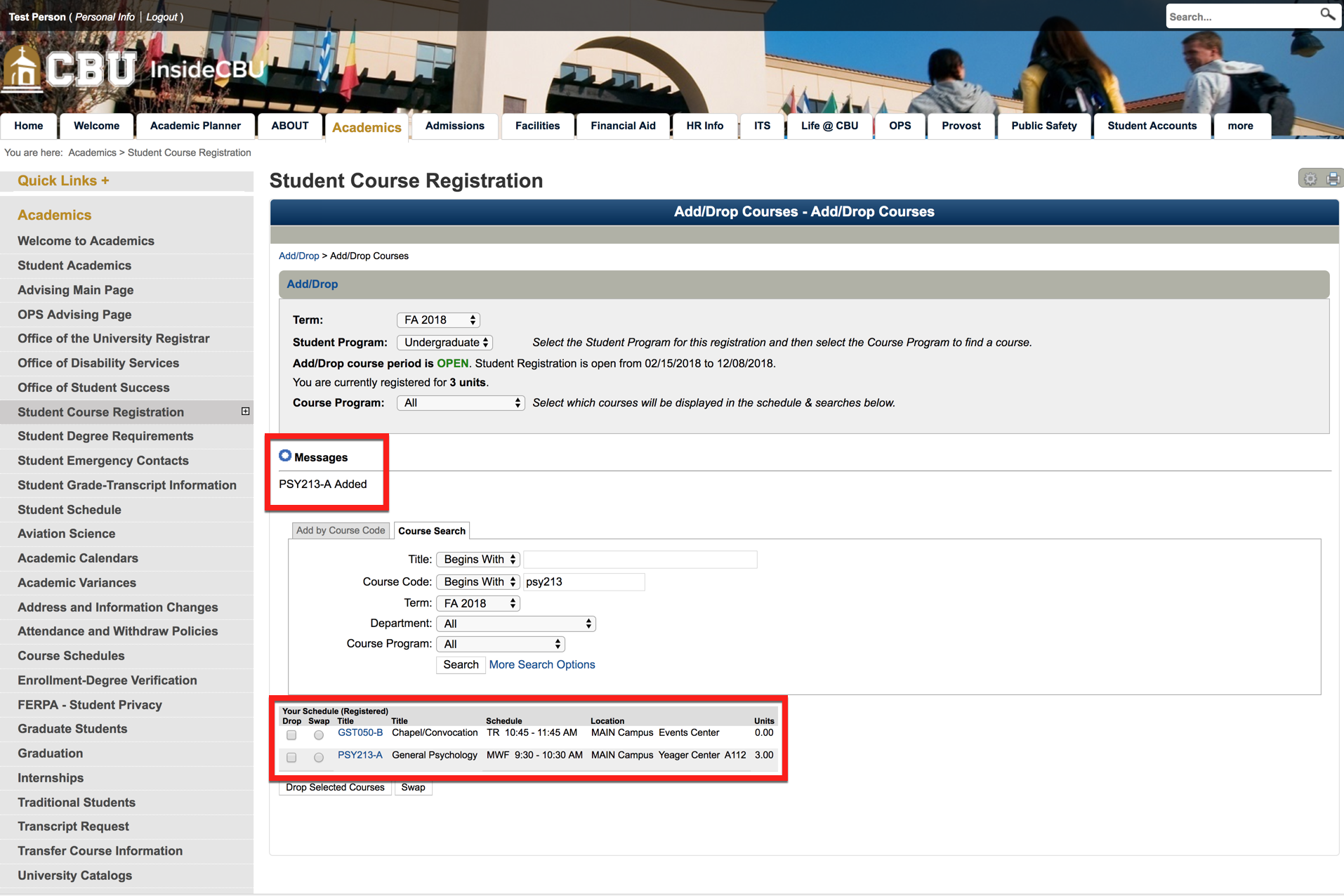
You can continue to add courses by repeating these steps.
When registering be mindful of full time, three-quarter time, and half time enrollment statuses. For financial aid purposes these are:
UNDERGRADUATE STUDENTS
6-8 units - Half Time
9-11 units - 3/4 Time
12+ units - Full Time (The State of California urges at least 15-16 units per semester)
GRADUATE STUDENTS
5-6 units - Half Time
7-8 units - 3/4 Time
9+ - Full Time
DOCTORAL STUDENTS
3 units - Half Time
5 units - 3/4 Time
6+ units - Full Time*
* Students enrolled in doctoral dissertation are considered full time also.
Once you are done adding your classes, we would encourage you to print or take a picture of your schedule for quick reference. To find your schedule, go to InsideCBU (make certain you are logged in), click the Academics tab, followed by the Student Schedule link on the left navigation column. Then, pull down to the desired semester you would like to access.
If you need any assistance, we would encourage you to connect with your Student Success Coach through their Find My Student Success Coach page. Please note, most Student Success Coaches do not have appointment availability showing past 14 days. If you have checked your coaches FMSSC page a couple of times already, but have been unsuccessful in booking an appointment, please call the Academic Advising office main number at 951-343-4567.
1. To Swap one course for another, click the bubble to the left of the course you would like to replace and then click the Swap button below.
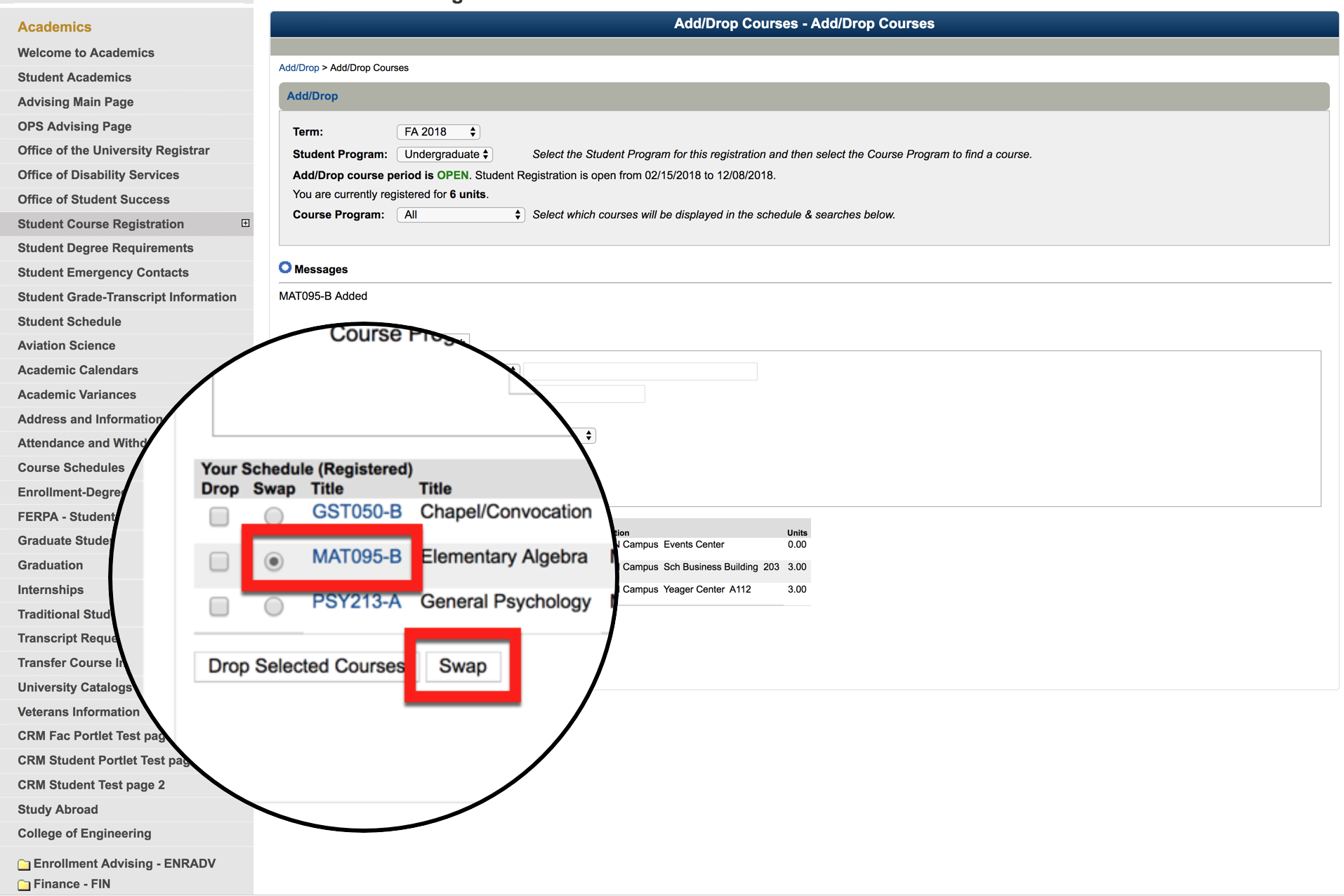
2. Enter the search criteria for the new course you want to add and click Search.
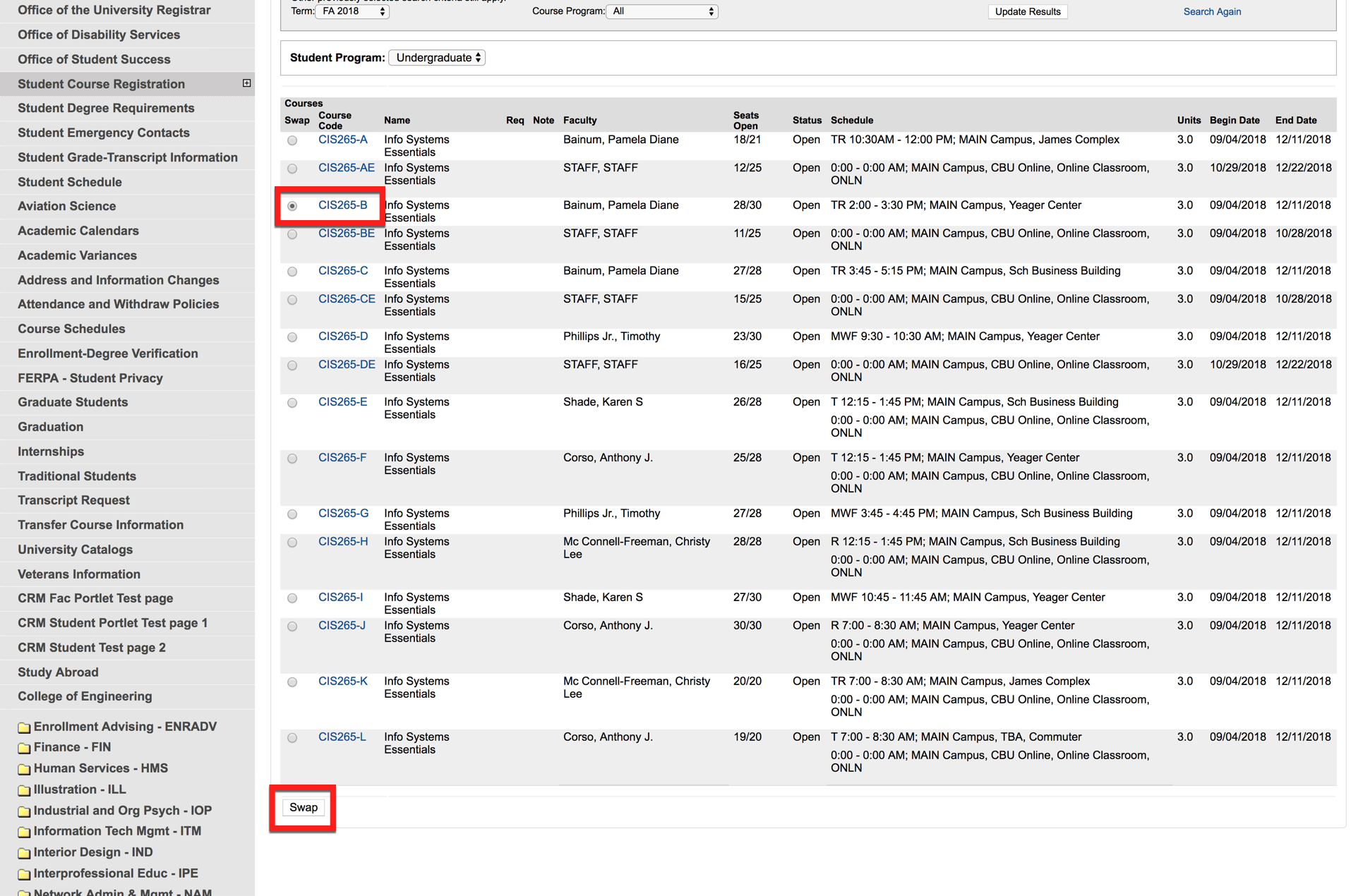
3. Select the section you would like to add and then click swap.
4. If the courses are swapped successfully you will see a confirmation message.
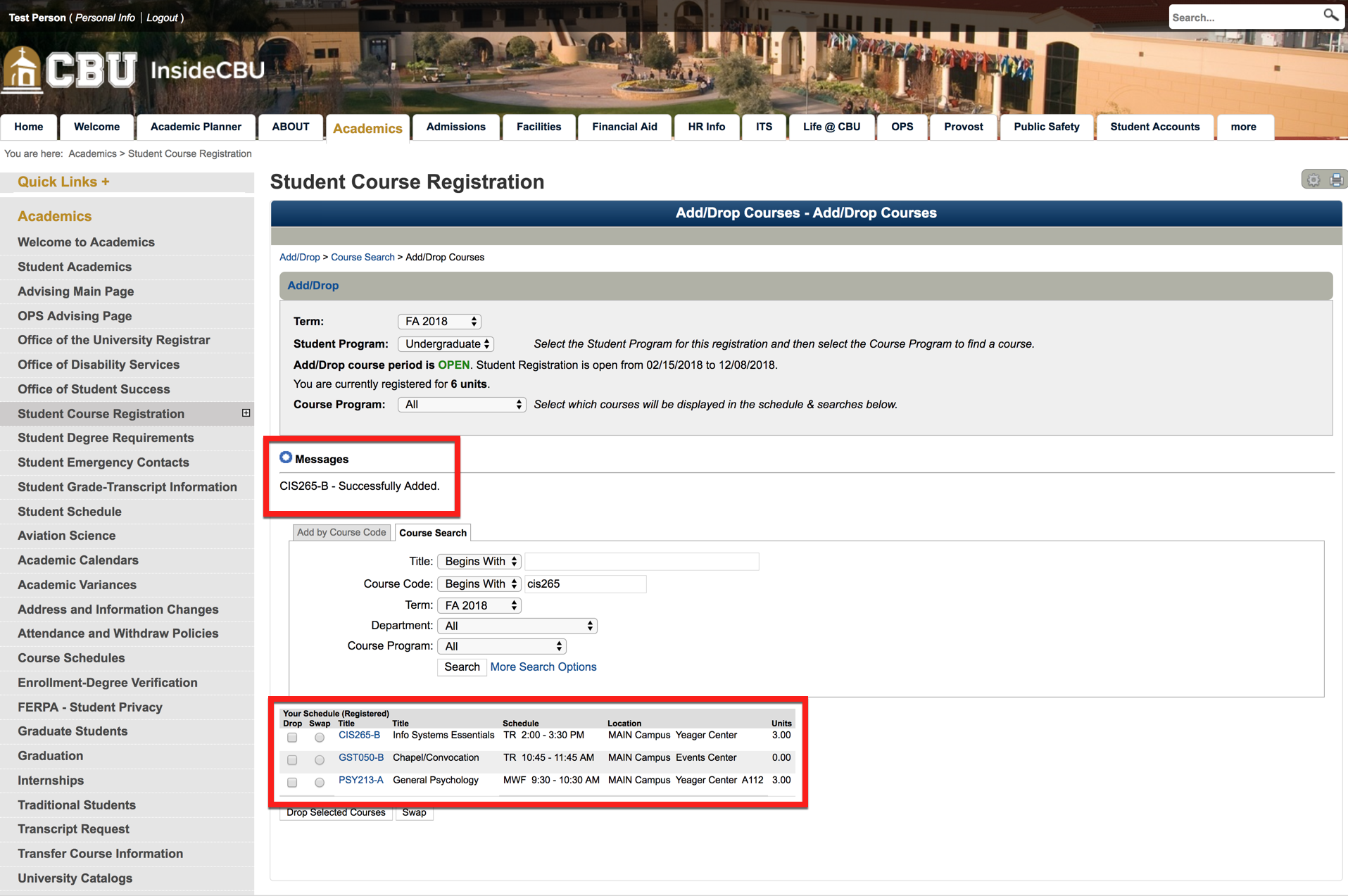
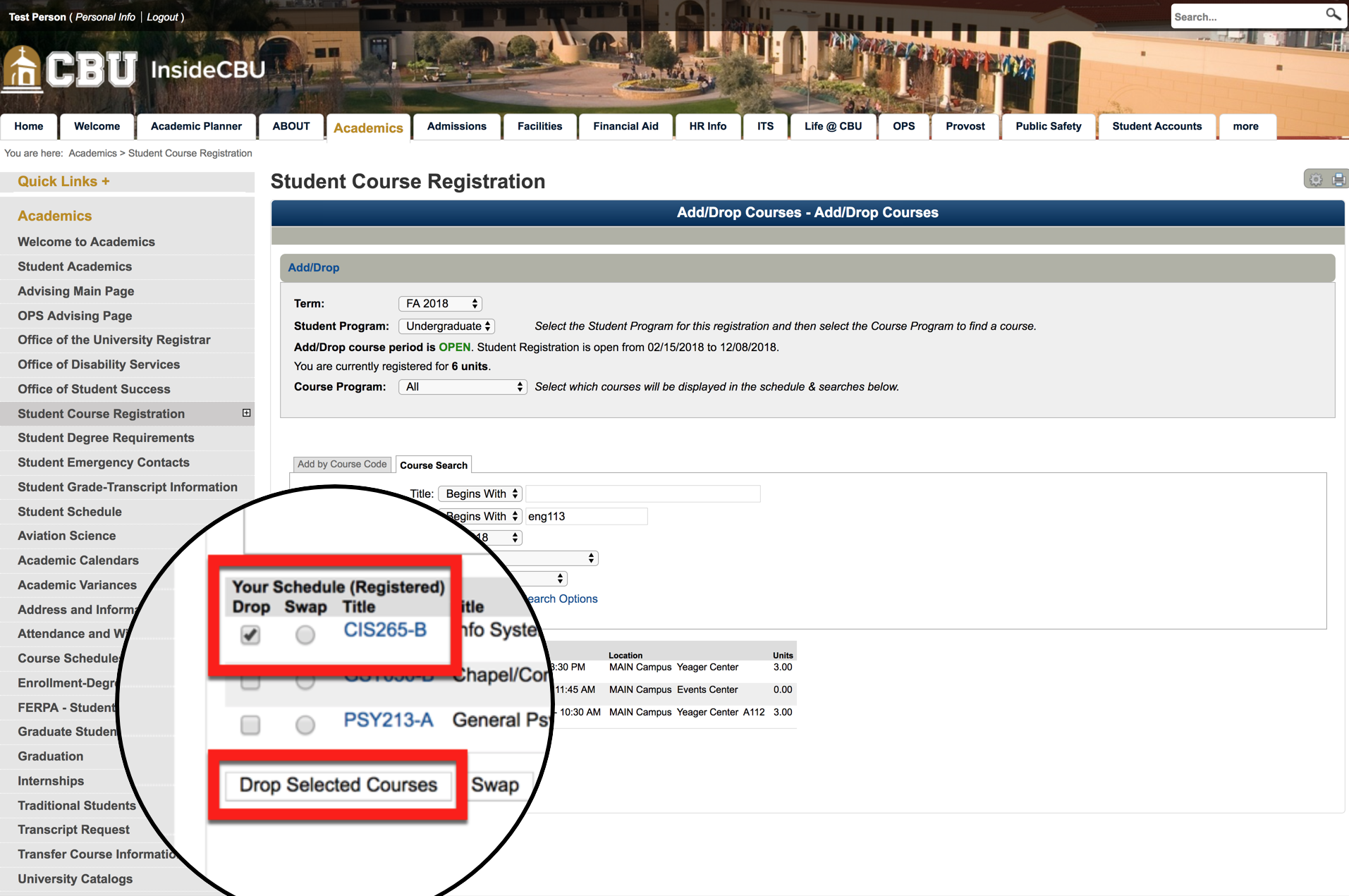
1. To drop (or remove) a course from your schedule during the drop period, click the box to the left of the course you wish to drop and click the Drop Selected Courses button. Once dropped the course will no longer appear on the screen.
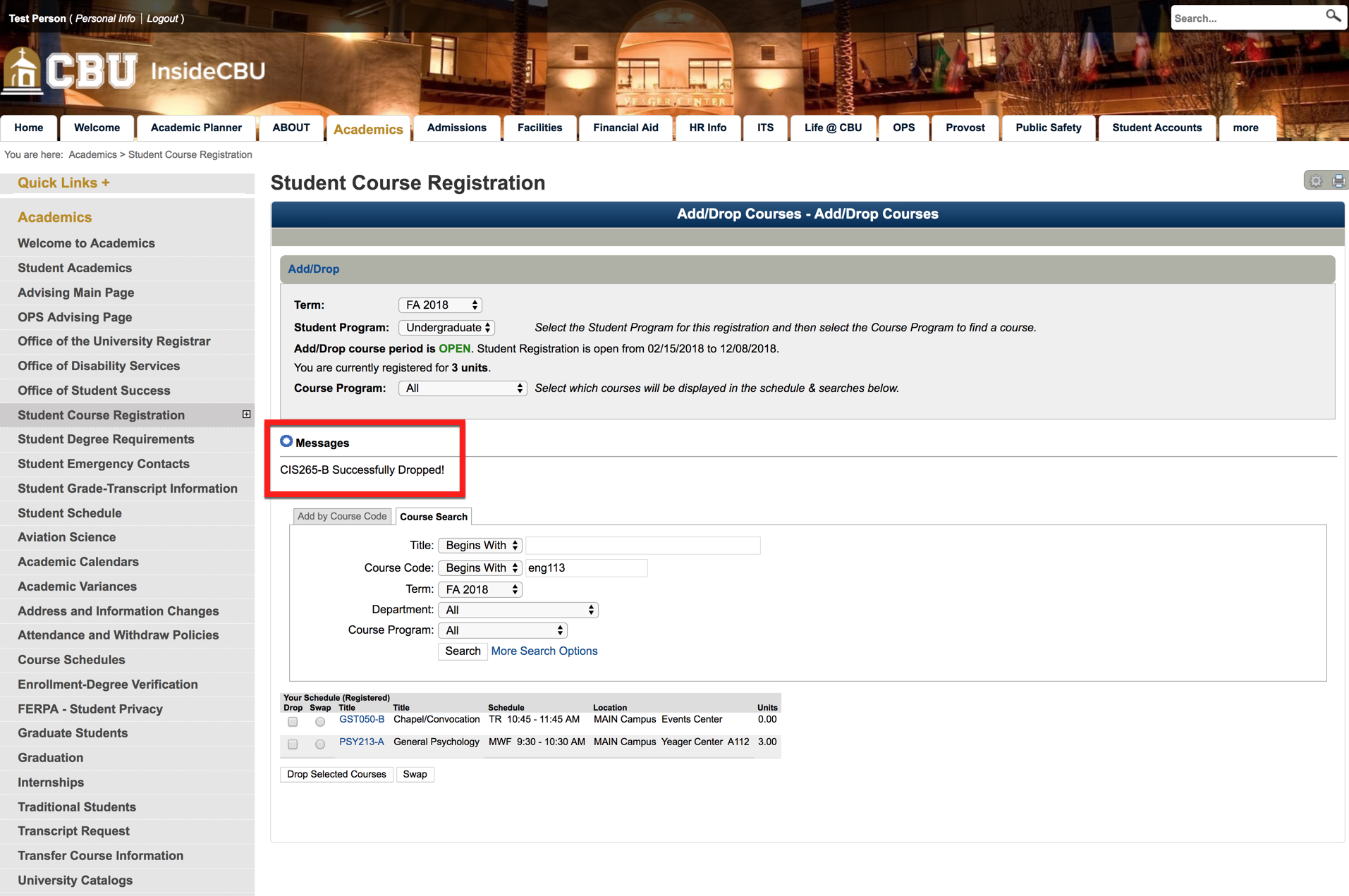
2. If the course is dropped successfully you will see a confirmation message.
Note: Once the last day to drop has passed, this same process will result in a withdraw.
Fall 2026 registration (LancerLink) - coming soon

Helpful Hint #1: Check for any Registration Notices and Holds prior to your assigned registration window.


Helpful Hint #2: When searching for potential courses to add, you may want to access "Advanced Search", and limit your search you only open courses, or maybe only Tuesday/Thursday courses or Online courses.
**Campus students are permitted to enroll in up to one online course per session. If this limit is exceeded administrative adjustments will be made, it's best to enroll according to the limit to avoid future schedule changes.


NOTE: Your course is not yet registered. It's simply staged to be added later. If it appears the course is about to close, we recommend you click the "Submit" button in the right to guarantee your space in the course.
Step 11: Click on Search Again

Helpful Hint #3: As you place courses you would like to add on your schedule, a grid will appear in the lower left. This grid will help you avoid course time conflicts and give you a sense of what your weekly schedule might look like. Again, though, your course is not yet registered.


When registering be mindful of full time, three-quarter time, and half time enrollment statuses. For financial aid purposes these are:
UNDERGRADUATE STUDENTS
6-8 units - Half Time
9-11 units - 3/4 Time
12+ units - Full Time (The State of California urges at least 15-16 units per semester)
GRADUATE STUDENTS
5-6 units - Half Time
7-8 units - 3/4 Time
9+ - Full Time
DOCTORAL STUDENTS
3 units - Half Time
5 units - 3/4 Time
6+ units - Full Time*
* Students enrolled in doctoral dissertation are considered full time also.
Once you are done adding your courses, we would encourage you to print or take a picture of your schedule for quick reference.
If you need any assistance, we would encourage you to connect with your Student Success Coach through their Find My Student Success Coach page and join them for office hours or schedule an appointment. If there are scheduling conflicts, please email your Student Success Coach with your availability.
1. To Swap one course for another, click the bubble to the left of the course you would like to replace and then click the Swap button below.
2. Enter the search criteria for the new course you want to add and click Search.
3. Select the section you would like to add and then click swap.
4. If the courses are swapped successfully you will see a confirmation message.
1. To drop (or remove) a course from your schedule during the drop period, click the box to the left of the course you wish to drop and click the Drop Selected Courses button. Once dropped the course will no longer appear on the screen.
2. If the course is dropped successfully you will see a confirmation message.
Note: Once the last day to drop has passed, this same process will result in a withdraw.
Registration Resources
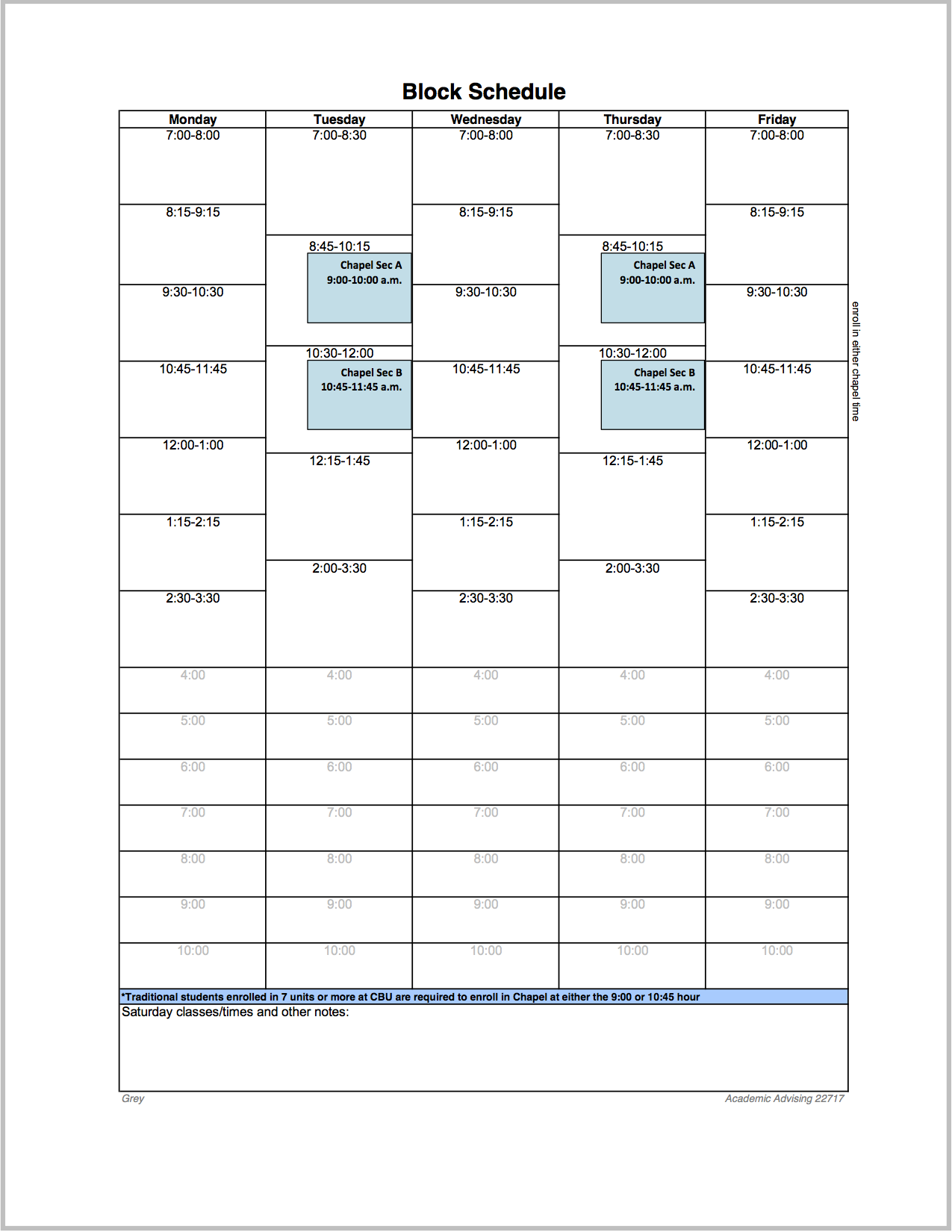
To help plan your schedule we recommend using the block schedule provided here. You may want to plan out your schedule on paper before actually enrolling in courses on InsideCBU. Click here to download the block schedule.
To determine which General Education classes you might consider registering in you can view / download the Recommended Courses to Meet General Education Requirements list. For any General Education categories you wish to complete, we recommend only taking courses from this list. This list provides you with recommended competency courses, and lower and upper division general education offerings. You must have at least 30 units completed to take upper division courses.
General Education for Students in 2021 Catalog Year or Prior
Click here to download the Recommended GE list. Click here to download the Recommended GE list for Engineering majors. Click here to download the Recommended GE list for Construction Management majors. Click here to download the Recommended GE list for Pre-Nursing / Nursing majors.General Education for Students in 2022 Catalog Year or Later (SP26 & SU26 course codes)
Click here to download the Recommended GE list. Click here to download the Recommended GE list for Engineering majors. Click here to download the Recommended GE list for Construction Management majors. Click here to download the Recommended GE list for Pre-Nursing / Nursing majors.General Education for Students in 2022 Catalog Year or Later (new LancerLink course codes)
Click here to download the Recommended GE list Click here to download the Recommended GE list for Engineering majors Click here to download the Recommended GE list for Construction Management majors Click here to download the Recommended GE list for Pre-Nursing / Nursing majorsDownload the most up-to-date Athletic Practice Time Schedule.
Students may appeal to take more than 18 units in a given semester by submitting an Academic Overload Form to their Student Success Coach (www.calbaptist.edu/FMSSC)
Students will be considered for overload if they have:
A 3.0 cumulative GPA
A minimum 3.0 session GPA in the preceding semester
No outstanding incomplete course work
Their status is sophomore, junior or senior and they are in good academic standing
Permission for overload is granted on a semester-by-semester basis. A desire to graduate early is, in itself, not sufficient reason to receive approval for academic overload. Students will pay current per unit rate for every unit above 18 units.
A student may take up to twelve (12) units of coursework on a “credit/no credit” basis in lieu of a letter grade. ENGL1130, ENGL1130E, ENGL1230, and ENGL1230E (English Composition) may not be taken on a “credit/no credit” basis, and not more than two (2) courses in general education may be taken on a “credit/no credit” basis.
Only one course may be taken per semester on a “credit/no credit” basis. All courses in the student’s major or minor field must be taken for a letter grade.
Students must choose this grading option during the Add/Drop Period. In order to receive credit for work completed on a “credit/no credit” basis, the work must be equivalent to a C- grade or better. The grade of “credit” does not affect the GPA calculations; a grade of “no credit” has the same effect on the GPA calculation as a failing grade.
The Credit/No Credit Form can be found here, and we would encourage you to speak with your Student Success Coach if you have any questions.
Directed Study is limited to those courses listed in the catalog and are part of the University’s regular curriculum. Independent Study is limited to original coursework not included in the University’s regular curriculum, and must include a course syllabus authored by the professor.
In addition to regular tuition, a per unit Directed/Independent Study fee is assessed to approved requests. Students petitioning for Directed/Independent Study must meet the following guidelines and not exceed limitations:
- Only juniors and seniors are eligible for directed/independent study.
- Only students who have a 3.0 or better grade point average are eligible for directed/independent study.
- No student may take more than a total of four units of independent study or directed study in any given semester.
- A form for directed/independent study may be obtained from Academic Advising. It must be completed with endorsement by the sponsoring faculty member and submitted to the Department Chair and University Registrar for approval.
- A maximum of nine (9) units of directed study or independent study may be applied towards degree requirements.
The Directed and Independent Study Request Form can be found here, and we would urge you to speak with your Student Success Coach if you have any questions.
The Alternative Chapel Program Application is an online application. If you have a Class Schedule Conflict, Work Schedule Conflict, Commuting Requirement, or Personal/Family Obligation you might be eligible for the online program.
Click here to access the Alternative Chapel Program Application.
Although Online undergraduate students typically take two online classes in the first session and two online classes in the second session of a semester, Campus students are limited to one online class in the first session and one online class in the second session.
At times, Campus students might find online classes taught by Campus faculty. In these cases, Campus students may be permitted to take more than one online class per session. That said, we do not encourage first semester Campus freshman to take online classes, nor do we encourage students in certain programs, or students pursuing certain career paths to take specific classes in an online format.
Please see your Student Success Coach if you have specific questions about online classes, or believe enrollment in an extra online class is needed.
Most often, Campus side graduate and doctoral students are precluded from taking required program courses in an online format. Please see your Student Success Coach if you have specific questions.
For anyone interested in getting a headstart on their CBU master's degree, there's a process available for seniors who agree to certain terms and who have met certain criteria. Check out more on the Post-Baccalaureate Credit Request form.